MasterPanel Guide

Everything you need to know about setting up your accounts, buying, selling, tracking profits, and more—now with even higher security standards and large-volume discounts!

Article Overview

This guide covers every main feature of MasterPanel from top to bottom. We strongly recommend setting your balance type to CSGO500 USDTfor seamless transactions. Below are the key pages:

  1. Dashboard
  2. Accounts
  3. Buy
  4. Sell
  5. Profits
  6. Transactions

Note: You are responsible for your external marketplace balances. MasterPanel uses its own internal balance (topped up by you) for fees.

Fee Structure

Buying

We charge a 1% fee per trade on purchases.
Example: If you buy an item on Shadowpay for $100, a $1 fee is deducted from your MasterPanel balance, while the item price goes to Shadowpay.

Selling

We charge a 1% fee per trade on sales.
Example: If you sell an item on Shadowpay for $100, a $1 fee is deducted from your MasterPanel balance, while the proceeds go to your Shadowpay account.

Large-Scale Traders

If you’re dealing with a high trading volume, we offer **fee discounts** to give you an edge. Check out our Large-Scale Traders page for more details.

Security Standards

At MasterPanel, we prioritize security above all else. All your data— including account credentials, API keys, and transaction history—is encrypted using industry-leading standards. We also apply strict privacy measures so no unauthorized party can access your information.

Our infrastructure is built with multi-layer firewalls and continuous monitoring, ensuring a safe trading environment. Rest assured, your personal and financial details remain strictly confidential.

Dashboard Breakdown

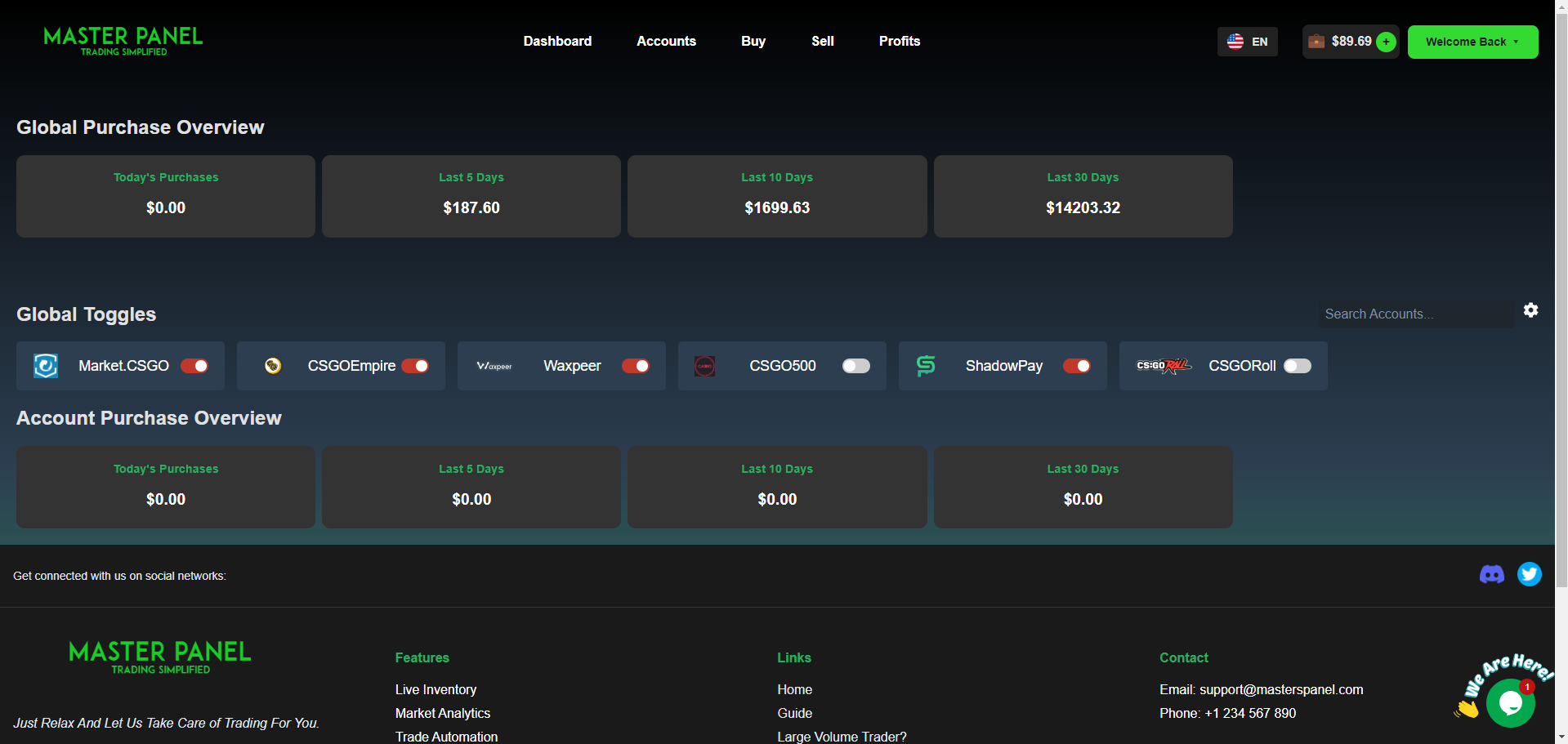
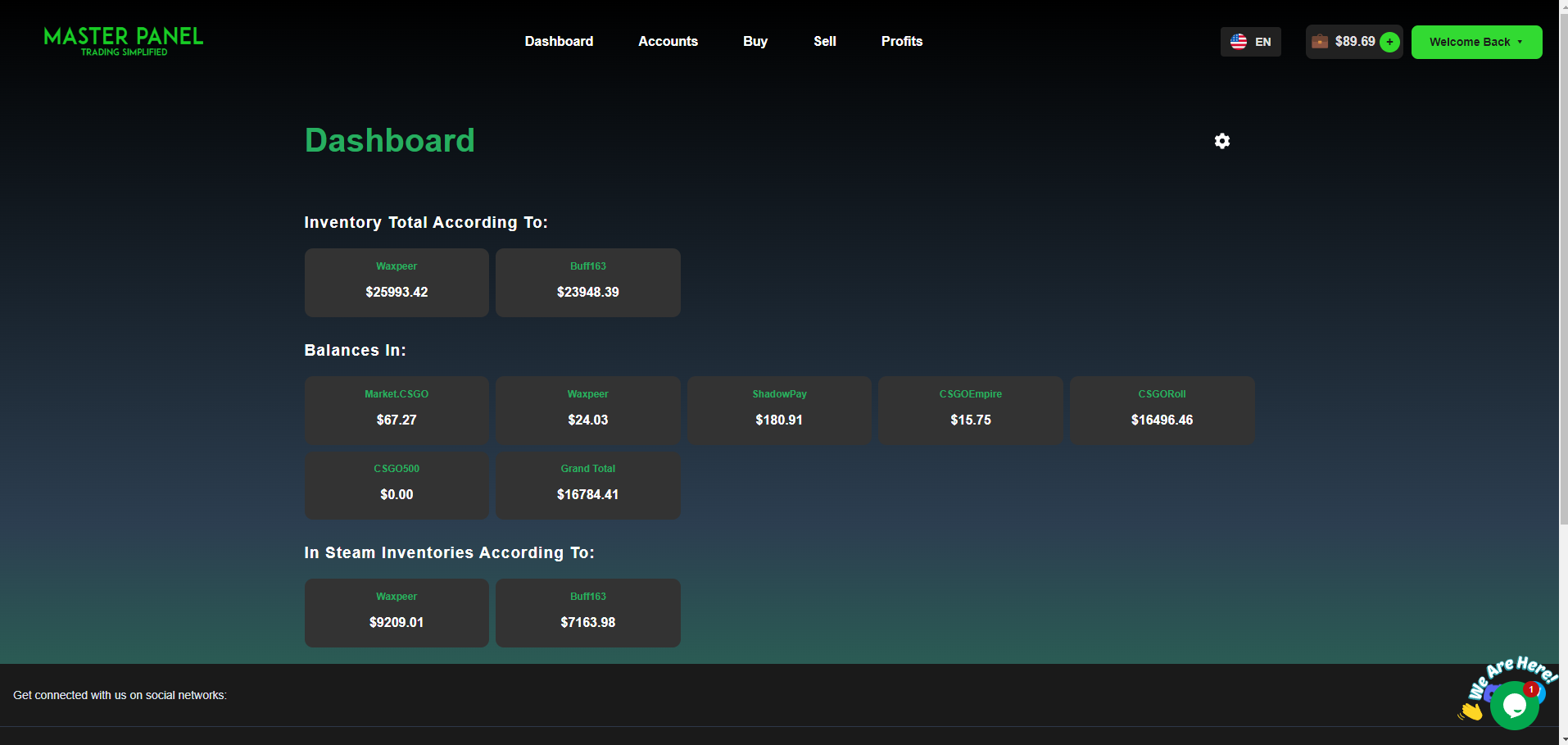
1. Inventory Total According To

Shows a combined total inventory value across all marketplaces and cash balances.

2. Balances In

Aggregate balances from each marketplace for a grand total.

3. In Steam Inventories According To

Summarizes your Steam inventory values across linked Steam accounts.

4. Settings Cog

Customize your dashboard’s visibility and apply balance modifiers to reflect fees or markups.

Dashboard Example

Accounts Breakdown

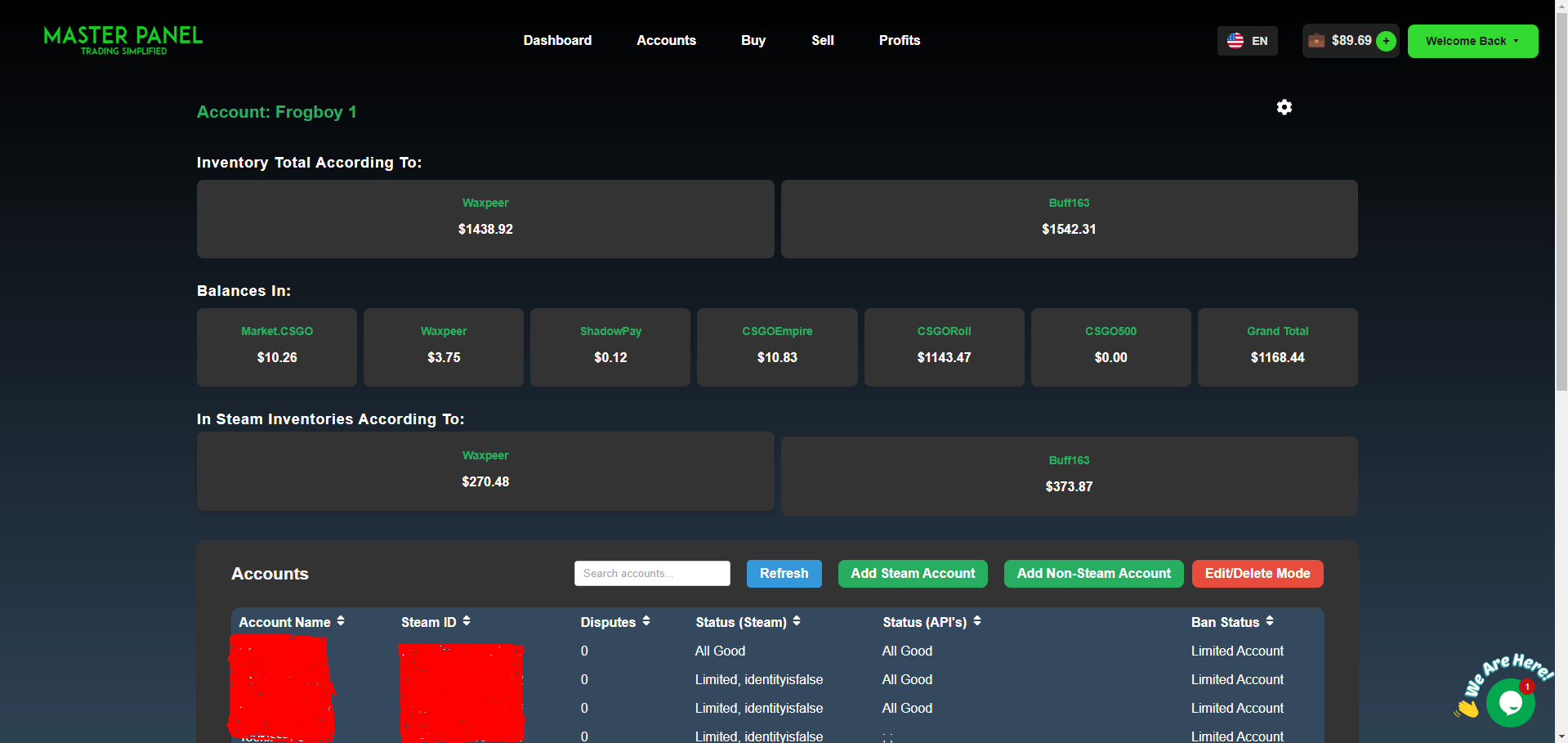
Manage each account (Steam or Non-Steam) individually, with its own balance modifiers and visibility settings. Add multiple accounts and track them all in one place.

1. Settings Cog

Inherits from the Dashboard, but each account can have separate balance modifiers.

2. Accounts Table

  • Search Bar: quickly find specific accounts
  • Refresh Button: update statuses in real-time
  • Add Account Form: integrate new accounts with needed credentials

3. Edit/Delete Mode

Quickly modify or remove accounts without exposing sensitive info (e.g., tokens, secrets).

4. Status Bar

Displays each account’s Steam/API credentials status, ban info, or invalid keys.

Section 2.3: Add Account Form

This is the place where the user can add their accounts tailored to their needs. There are 2 major account types:

Section 2.3.1: Steam Account

This account type uses your Steam credentials (non-limited, non-restricted) plus a Proxy and any relevant marketplace APIs. Everything becomes automatic, including escrow dispute handling on sites like CSGOEmpire and CSGO500. Your account effectively goes on auto-pilot.

Section 2.3.2: Non Steam Account

If you don’t want to use SDA (Steam Desktop Authenticator), you can add a Non-Steam account by simply providing a nickname and the relevant API keys. A proxy is mandatory for certain marketplaces (CSGOEmpire, CSGORoll, CSGO500). Non-Steam accounts can do everything **except** Selling, which requires Steam integration.
Accounts Breakdown

Buy Page

Filter and control buying strategies (min/max price, liquidity, Buff percentages). Global toggles enable or disable buying across all accounts, or set custom rules for each one.

Settings Cog Explanation

This cog controls the **buying services**. Upon clicking, you'll see each marketplace’s settings:

  • Min: Don’t buy items cheaper than this threshold
  • Max: Don’t buy items more expensive than this threshold
  • Liquidity: Higher means it sells quicker, but usually fewer deals
  • Buy Threshold: The percentage of Buff reference price you’re willing to pay

Example: A Buy Threshold of 90% means you won't buy an item at more than 90% of its Buff price. If Buff is $1, your max is $0.90.

Buy Page

Sell Page

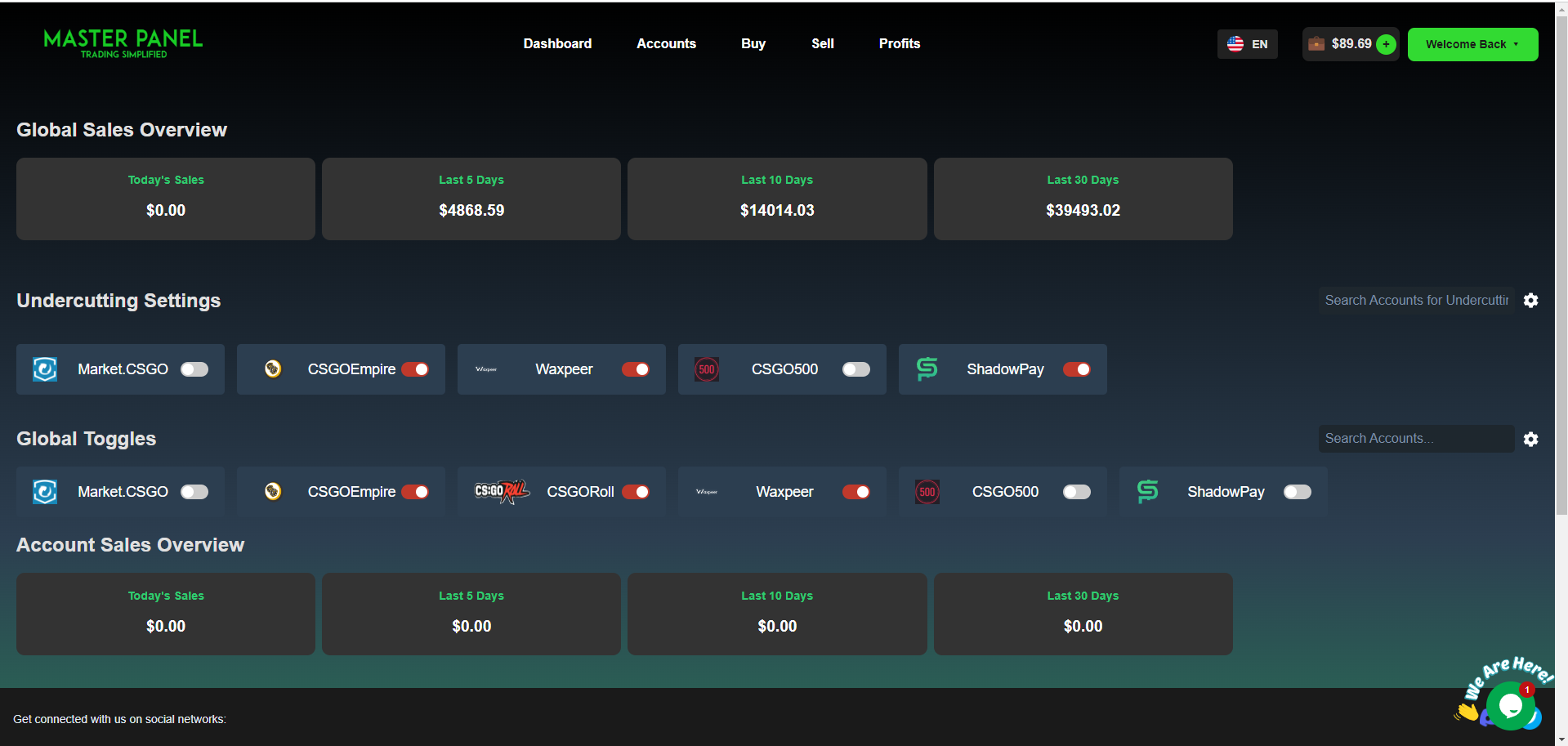
Similar to the Buy page, but features Undercutting: automatically updating your item price to stay ahead of competitors while respecting your maximum discount limit.

Settings Cog Explanation

You’ll see similar fields for Min, Max, and Liquidity. The difference is the “undercut” or “threshold” references. Instead of refusing to buy above a certain percent, you limit how low you’re willing to discount below the current market/Buff price.

Sell Page

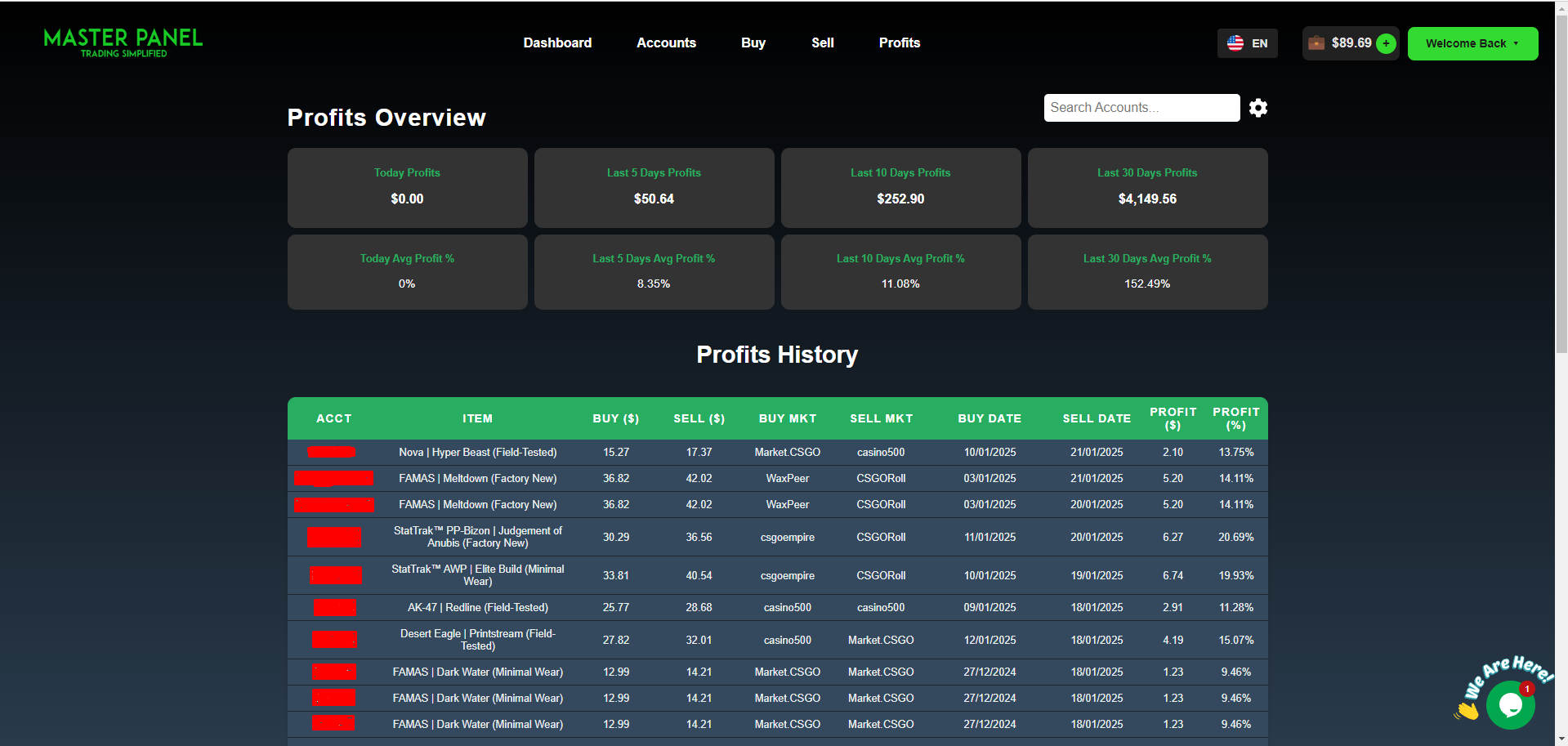
Profits Page

Tracks your gains item by item, displaying both raw profit and percentage returns. You can also filter data by account to see precisely where your best returns come from.

Profits Page

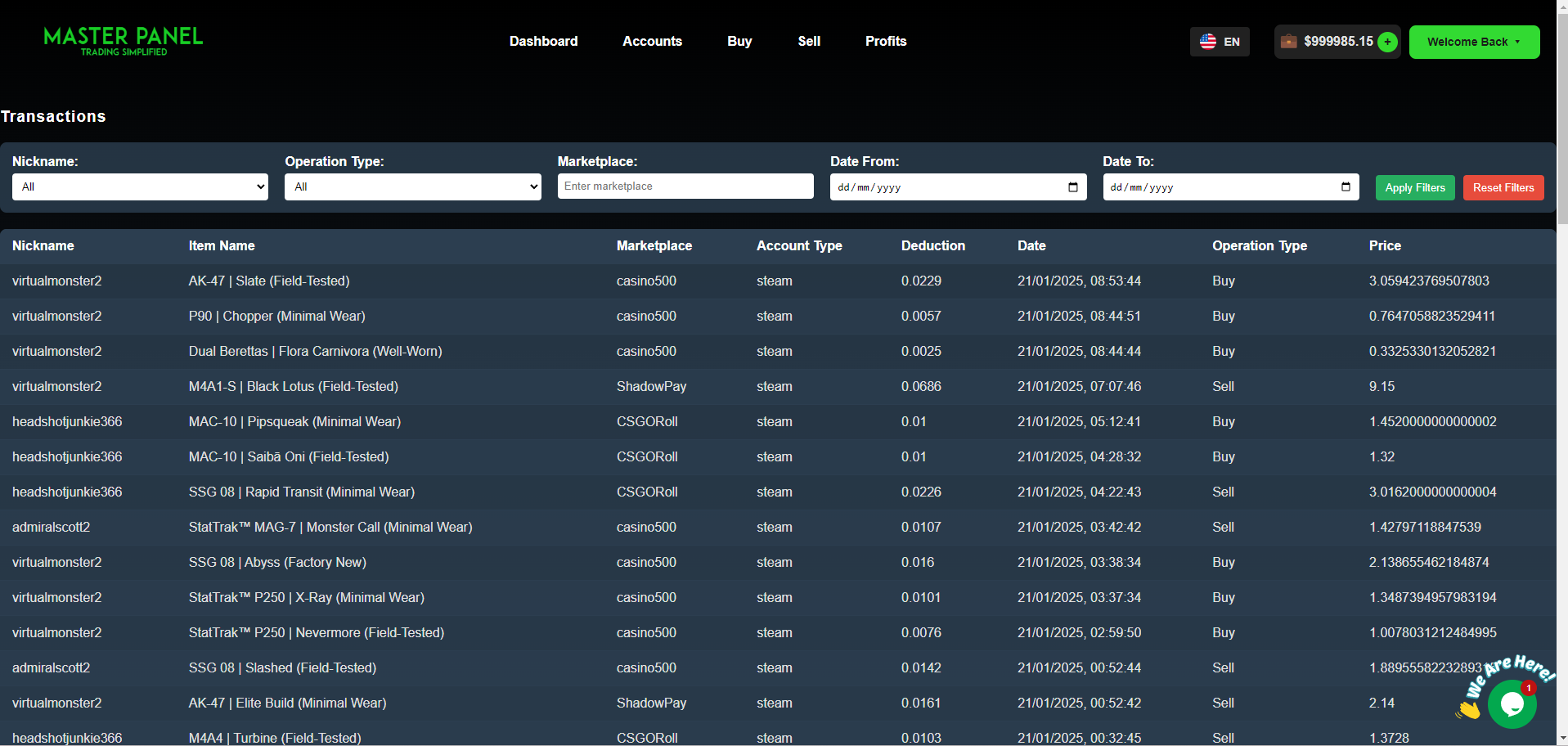
Transactions Page

A detailed overview of all deductions from your MasterPanel balance— perfect for reviewing fees or verifying specific trades.

Transactions Page

Updates & Changelog

MasterPanel is regularly updated with new functionalities. Recent highlights:

  • Buy & Sell toggles for CSGO500, MARKET.CSGO, Waxpeer
  • Automatic undercutting & auto-lister for CSGORoll
  • Referral System with 5% revenue share
  • Proxy-based Browser Control for manual Steam actions
  • More frequent bug fixes & improvements

Brief MasterPanel Example

Let’s say you have a Steam account linked with Shadowpay, Waxpeer, and CSGOEmpire. You set these rules:

  • Buy items $1 - $200 at 90% of Buff prices
  • Sell with a 2% undercut, not exceeding a 5% discount
  • Apply a 95% balance modifier on Shadowpay to reflect withdrawal fees

MasterPanel automates it all—buying, listing, undercutting, and fee tracking. You can monitor your profits and manage transactions with zero hassle.